

Getting Started With Video Streaming: A Beginner's Guide
Table of Contents
- Getting Started With Video Streaming: Core Foundations
- Choosing the Right Video Streaming Platforms
- Essential Streaming Equipment List for Beginners
- Setting Up Your Streaming Software and Workflow
- Best Practices for Live Streaming Success
- Content Strategy and Planning Your Broadcast
- How to Monetize Live Streams and Track KPIs
- Legal Compliance and Network Optimization
Last Updated: July 28, 2026
Getting started with video streaming can feel overwhelming when facing dozens of platform choices, technical configurations, and equipment decisions. At Perfect Take Gear, we've helped countless creators navigate this challenge by breaking down the process into manageable steps. This guide walks you through everything from choosing your streaming platform to optimizing broadcast quality, so you can launch your first stream with confidence.
Getting Started With Video Streaming: Core Foundations
Before buying equipment or opening a streaming account, clarify what you're streaming and who you're streaming to. Your streaming goals determine everything downstream, platform choice, equipment specs, software configuration, and content strategy.
The core technical fundamentals, bitrate, resolution, frame rate, and latency, apply across all streaming types.
Understanding Your Streaming Goals and Audience
Your streaming goals shape every decision that follows. Are you building an audience, monetizing content, or sharing with friends? Consider: What specific outcome do you want? How much time can you realistically commit per week? What's your budget? Do you need monetization from day one?
Understanding your audience means knowing where they spend time, what quality they expect, and what problems your content solves. A gaming audience on Twitch expects high frame rates. A business audience on LinkedIn Live tolerates lower production value if the content is valuable. Identify who benefits most from your content and their technical comfort level.
Choosing the Right Video Streaming Platforms
Not all streaming platforms are created equal. Each has different audience demographics, monetization structures, and technical requirements.
Platform Comparison: Twitch vs. YouTube Live vs. Facebook Gaming
Twitch dominates gaming and creative content with discovery features that help new streamers get found. Monetization requires 50 followers and 500 watch hours. Best for gaming, creative content, music, and entertainment with a younger, highly engaged audience.
YouTube Live integrates with the world's largest video platform. Your live streams automatically become VOD (video on demand) content that continues generating views long after broadcast. Monetization requires 1,000 subscribers and 4,000 watch hours. Best if you already have a YouTube channel or if your content is educational and benefits from being searchable.
Facebook Gaming focuses on casual gaming and social interaction. Discovery is poor for new creators but works well for niche communities and existing Facebook audiences.
| Platform | Best For | Audience Age | Monetization Requirement | Setup Difficulty |
|---|---|---|---|---|
| Twitch | Gaming, creative content | 18-35 | 50 followers, 500 watch hours | Easy |
| YouTube Live | Educational, existing channels | All ages | 1,000 subscribers, 4,000 watch hours | Moderate |
| Facebook Gaming | Community, casual gaming | 25-55 | Variable, less reliable | Easy |
For most new creators, Twitch or YouTube Live are the strongest choices.
Essential Streaming Equipment List for Beginners
You don't need expensive gear to start streaming. Many successful creators launch with just a webcam and microphone.
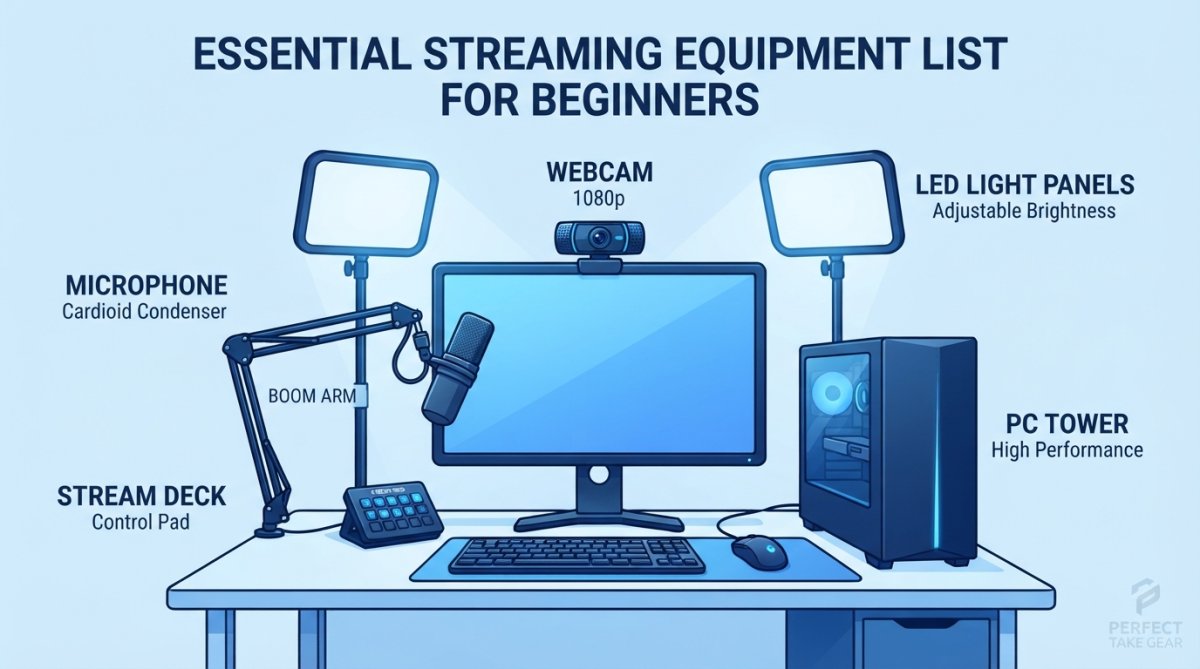
The minimum viable streaming setup includes a camera (webcam or phone), microphone, streaming software (OBS or Prism), stable internet connection, and lighting (can start with natural light). Perfect Take Gear offers curated starter kits that bundle these essentials at affordable prices, designed specifically for creators launching their first streams.
Hardware Requirements: Webcam, Microphone, and Encoder
A 1080p webcam is the standard starting point. The microphone matters more than the camera, viewers tolerate poor video quality but abandon streams with bad audio immediately. A USB microphone ($30-80) is a massive upgrade from your computer's built-in mic. Popular options include the Audio-Technica AT2020USB+, Blue Yeti, or Shure MV5.
OBS Studio is free and handles 95% of streaming use cases. Prism is another popular option with a simpler interface. Both work equally well for beginners.
Internet Connection and Upload Speed
Your upload speed determines the maximum bitrate you can stream at. Check your upload speed at speedtest.net. For streaming purposes, you need:
- Minimum 5 Mbps upload for 1080p at 60fps
- 10+ Mbps upload for comfortable headroom and stable quality
- 25+ Mbps if others use the network during streaming
If your upload speed is below 5 Mbps, start with 720p at 30fps instead. Wired internet (ethernet) is significantly more stable than Wi-Fi.
Setting Up Your Streaming Software and Workflow
Your streaming software is where video, audio, and settings come together. Basic setup takes about 30 minutes.
OBS Studio vs. Prism: Choosing Your Encoder
OBS Studio is free, open-source, and the industry standard. It has a steeper learning curve but offers complete control over every setting. Most tutorials and community support are built around OBS.
Prism is a newer alternative with a simpler interface designed for beginners. It handles most common scenarios automatically, which means less configuration but less customization.
For getting started with video streaming, either choice works. OBS is the safer bet if you plan to grow beyond basic streaming.
Configuring Bitrate, Resolution, and Frame Rate
These three settings determine your stream quality and bandwidth consumption.
Resolution is the pixel dimensions of your video. 1080p (1920x1080) is the standard for quality streams. 720p (1280x720) is acceptable if your upload speed is limited.
Frame rate is how many images per second your video shows. 60fps looks smoother than 30fps, especially for gaming. For non-gaming content, 30fps is perfectly acceptable and uses less bandwidth.
Bitrate is the amount of data you send per second. Standard bitrate recommendations:
- 1080p 60fps: 6,000-9,000 kbps
- 1080p 30fps: 4,500-6,000 kbps
- 720p 60fps: 4,500-6,000 kbps
- 720p 30fps: 2,500-4,000 kbps
Start conservative. If your upload speed is 10 Mbps, use 6,000 kbps bitrate to leave headroom for network fluctuations.
RTMP Setup and Stream Key Configuration
RTMP is the protocol that sends your video stream to the platform. Each platform provides an RTMP URL and a unique stream key. Your streaming software uses these to connect to the platform's servers.
In OBS, go to Settings > Stream, select your service (Twitch, YouTube, Facebook), and paste your stream key. OBS automatically fills in the correct RTMP URL. In Prism, select your platform and authenticate with your account. Your stream key is private, treat it like a password and regenerate it immediately if you accidentally share it publicly.
Best Practices for Live Streaming Success
Technical setup is only half the battle. How you manage your stream during broadcast determines whether viewers stay or leave.
Pre-Stream Testing and Scene Transitions
Test your stream before going live. Open your streaming software, add all your sources, and do a full run-through. Check that your camera is positioned correctly, your microphone is picking up audio, and your lighting is adequate. Keep scene transitions simple and professional. Fade transitions are standard. Avoid spinning or sliding effects that look unprofessional.
Audio Levels and Video Quality Management
Audio levels determine whether viewers can hear you clearly. Most streaming software shows audio meters. Aim for levels that peak around -6dB to -3dB. Monitor your bitrate during the stream using your streaming software's built-in statistics. If you notice pixelation or buffering, reduce bitrate slightly.
Audience Engagement and Latency Optimization
Latency is the delay between what you broadcast and when viewers see it. Most streaming platforms have 5-15 second latency. Acknowledge chat periodically and respond in batches rather than trying to have real-time conversations. Engage your audience by greeting new viewers by name, asking questions, and thanking subscribers and donors. Treat your audience as a community, not an audience.
Content Strategy and Planning Your Broadcast
Random streaming leads to random results. Successful streamers plan their content, maintain consistent schedules, and evolve their format based on what works.
Mobile vs. Desktop Streaming Methods
Mobile streaming uses your phone's camera and internet connection. Download an app like Streamlabs or the native Twitch app, and you're broadcasting within minutes. Mobile streaming is ideal for on-the-go content, outdoor events, or situations where you don't have access to a computer.
Desktop streaming uses a computer, external camera, and streaming software. This gives you complete control over your setup and allows for professional-looking production. Most successful creators use desktop streaming for their primary content and mobile streaming as a supplement.
Console Streaming Setup for Gaming
If you're streaming console gaming, you need a capture card. A capture card connects between your console and computer, allowing your streaming software to access the console's video output. Popular capture cards include Elgato HD60 S+, AVerMedia Live Gamer Portable 2, and Blackmagic Intensity Pro, ranging from $100-300. Console streaming requires more bandwidth than desktop streaming.
How to Monetize Live Streams and Track KPIs
Monetization is a long-term goal, not a day-one concern. Most platforms require you to build an audience before you can earn money.
Setting Streaming Goals and Key Performance Indicators
KPIs (key performance indicators) are the metrics you track to measure success. If your goal is building an audience, track average concurrent viewers, total unique viewers per stream, follower growth per week, and average stream duration. If your goal is monetization, track subscribers, channel memberships, donations, and revenue per stream. If your goal is community building, track chat engagement, return viewers, and collaboration opportunities.
Set realistic goals. A new streamer might aim for 10 concurrent viewers in the first month. Both represent progress if they show growth from baseline.
Post-Stream Analytics and Growth Tracking
Review analytics after each stream. Look for patterns: Which content types get higher viewer counts? Which times of day attract more viewers? Which topics keep people watching longer? Most successful streamers evolve their content based on analytics. Expect slow growth early. After 3-6 months of consistent streaming, you should see measurable audience growth if your content resonates.
Legal Compliance and Network Optimization
Two often-overlooked aspects of streaming are legal compliance and network stability.
Copyright and Licensing for Streamed Content
Copyright violations are the most common reason streaming channels get shut down. If you're streaming gameplay, the game developer owns the copyright. Most major game publishers allow streaming as long as you're not charging money or using monetized ads.
Background music is a minefield. Spotify, Apple Music, and YouTube Music are NOT licensed for streaming broadcasts. Using copyrighted music can result in copyright strikes, muted VODs, or channel termination. Use royalty-free music instead. Platforms like Epidemic Sound, Artlist, and YouTube Audio Library provide music specifically licensed for streaming.
Network Optimization for Reliable Broadcasts
A stable internet connection is non-negotiable. Optimize your network by using ethernet instead of Wi-Fi, closing bandwidth-heavy applications, streaming at a bitrate that's 50% of your upload speed, scheduling streams during off-peak hours, and using a dedicated streaming computer if possible. Monitor your connection quality using your streaming software's built-in stats.
Getting started with video streaming requires planning, but the technical barrier is lower than most creators assume. Start with the fundamentals, understand your goals, choose the right platform, invest in basic equipment, and launch your first stream. Growth comes from consistency and iteration, not from perfect equipment on day one.
Perfect Take Gear provides everything you need to build a professional streaming setup without the overwhelming cost. Our curated starter kits bundle compatible camera, microphone, and lighting equipment designed specifically for new creators. Whether you're launching a gaming channel, hosting webinars, or building a creative community, we have the tools to get you started and the support to help you scale. Search for streaming starter kits on our site to find the setup that matches your specific content type and budget.
Frequently Asked Questions
What equipment do I need to start video streaming?
At minimum, you need a webcam, microphone, stable internet connection (at least 5 Mbps upload speed), and a computer or mobile device. A streaming software like OBS Studio or Prism helps manage your broadcast. Consider adding lighting and a second monitor to improve production quality. Perfect Take Gear offers beginner packages that bundle these essentials affordably, so you don't need to source items individually.
What are the best platforms for new video streamers?
Twitch, YouTube Live, and Facebook Gaming are the top video streaming platforms for beginners. Twitch excels for gaming and creative content with strong community features. YouTube Live offers broader reach and monetization options. Facebook Gaming works well if your audience is already on Facebook. Each platform has different requirements for stream key setup and audience expectations, so choose based on where your target audience already spends time.
How much internet speed do I need for streaming?
For reliable live streaming, aim for at least 5 Mbps upload speed. Higher bitrate streams (1080p at 60fps) require 8-15 Mbps. Test your upload speed before going live using free online tools. Network optimization matters too, use a wired ethernet connection when possible rather than WiFi. If your connection is unstable, lower your bitrate and resolution to prevent stream interruptions and maintain consistent video quality.
Can I make money from video streaming?
Yes, but monetization requirements vary by platform. Twitch requires 50 followers and 500 total watch hours in the last 30 days. YouTube Live requires 1,000 subscribers and 4,000 watch hours. You can earn through subscriptions, donations, ads, and sponsorships. Set streaming goals and track KPIs like viewer count and engagement to grow your audience. Post-stream analytics help you refine your content strategy for better monetization opportunities over time.
What's the difference between OBS Studio and Prism for streaming?
OBS Studio is free, open-source, and highly customizable, ideal for creators wanting full control over their encoder settings, bitrate, and RTMP configuration. Prism offers a more streamlined, beginner-friendly interface with preset configurations. Both handle scene transitions, audio levels, and video quality adjustments. Choose OBS if you want deep technical control; choose Prism if you prefer simplicity. Your choice depends on your comfort level and streaming workflow needs.
Should I stream from my phone or desktop?
Desktop streaming offers better video quality, more scene flexibility, and easier multi-source setups. Mobile streaming is convenient for on-the-go broadcasts but limits customization. For console gaming, you'll need capture equipment connected to a desktop or capture card. Most beginners start with desktop streaming using OBS or Prism, then explore mobile options once they understand their streaming workflow. Desktop setups provide more professional results.
What should I test before going live with my stream?
Test your encoder settings (bitrate, resolution, frame rate), audio levels, and internet connection stability. Do a practice broadcast to check video quality, latency, and scene transitions. Verify your stream key is correct and your RTMP connection is stable. Test your microphone and webcam audio separately. Run through your content strategy and timing. This pre-stream testing prevents embarrassing technical failures and ensures your audience sees your best production quality from day one.
This article was written using GrandRanker