

Essential Gear for Remote Video Calls: 2026 Setup Guide
Table of Contents
- Why Essential Gear for Remote Video Calls Matters
- Best Webcam for Remote Work: Choosing the Right Camera
- How to Improve Audio Quality for Video Calls
- Video Conferencing Lighting Tips for Professional Appearance
- Internet Connection and Bandwidth Requirements
- Ergonomic Workspace Setup for Extended Video Calls
- Video Conferencing Software and Hardware Integration
- Acoustic Treatment for Home Offices
Last Updated: August 10, 2026
Why Essential Gear for Remote Video Calls Matters
The difference between looking unprepared and professional on a video call comes down to three things: how you appear on camera, how you sound, and your comfort during extended conversations. External equipment gives you control over lighting, audio clarity, and framing that built-in laptop solutions can't match. When you invest in proper gear, you reduce fatigue from poor ergonomics, eliminate distracting background noise, and create an environment where you can focus on the conversation instead of worrying about your appearance.
Best Webcam for Remote Work: Choosing the Right Camera
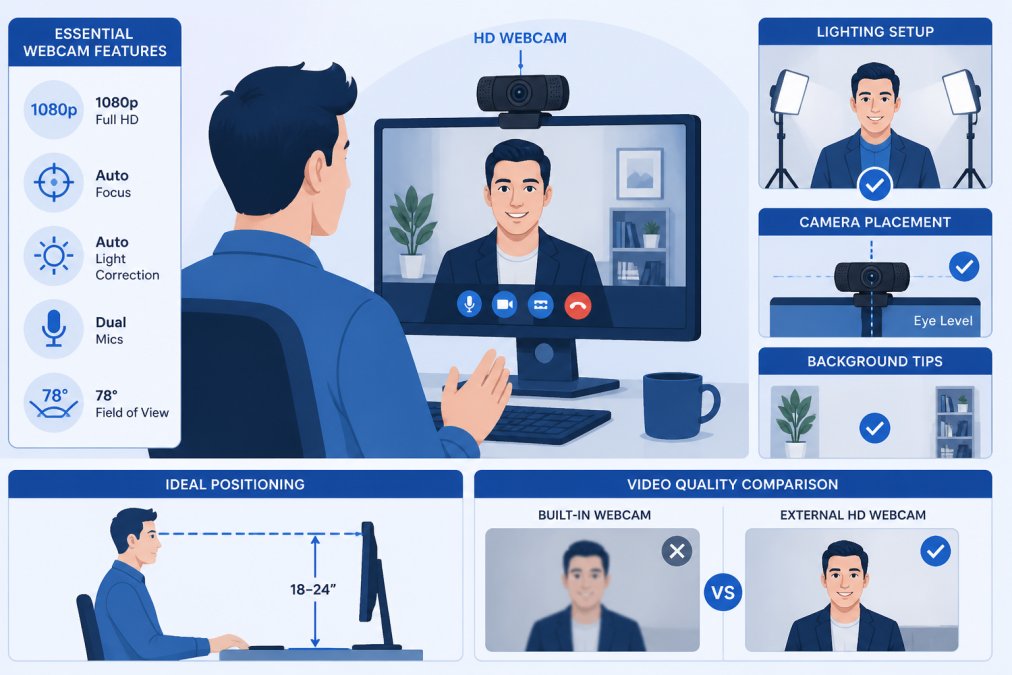
A quality external camera replaces the fixed, often unflattering angle of a laptop camera with a sharp, adjustable image you control.
What to Look For in a Remote Work Webcam
A professional webcam needs high-definition resolution, automatic light correction, and a reasonable field of view. Full HD (1080p) at 30 frames per second is the baseline for professional calls. Automatic light correction keeps you looking consistent as office lighting changes throughout the day. A 78-degree field of view is standard for professional use, wide enough to show you clearly without distorting your face or capturing excessive clutter. A physical privacy shutter gives you peace of mind that the lens is truly covered when not in use.
Top Webcam Options for Video Calls
The Logitech C920s Pro HD Webcam delivers reliable full HD video at an accessible price. It includes automatic light correction, dual microphones for stereo audio, and a privacy shutter. The 78-degree field of view keeps focus on you without excessive background. Setup takes under a minute, just mount it on your monitor and plug in the USB cable.
For creators needing flexibility, the Elgato Facecam Pro offers autofocus and a wider 90-degree field of view, though at a higher price. For straightforward video conferencing, the Logitech handles everything you need.
The Logitech C920s remains the most reliable choice under $100 and has been the standard for remote work setups for years because it consistently delivers sharp video without complex configuration.
How to Improve Audio Quality for Video Calls
Audio quality often matters more than video quality in remote calls. Background noise, muffled speech, or echo makes communication difficult and unprofessional.
Microphone Solutions That Eliminate Background Noise
A dedicated USB microphone with a cardioid polar pattern captures sound primarily from in front of the mic, rejecting noise from the sides and rear. Built-in mics pick up everything, keyboard typing, chair creaking, air conditioning hum, because they're omnidirectional and positioned far from your mouth.
The Rode NT-USB Mini is a compact, studio-quality USB microphone that connects directly to your computer without drivers. It uses a cardioid capsule to isolate your voice from background noise, includes a built-in pop filter, and offers a 3.5mm headphone output for monitoring. Position the microphone 6-8 inches from your mouth, slightly off to the side, for optimal results.
Headsets and Audio Peripherals for Clear Communication
Headphones let you hear other participants clearly and prevent audio feedback. Noise-canceling headphones are worth the investment if you work in a noisy environment.
The Sony WH-1000XM5 Noise-Canceling Headphones offer industry-leading noise cancellation that blocks office background noise and traffic. The microphone array captures your voice clearly even in noisy environments, and multipoint connection lets you seamlessly switch between devices. Battery life extends to 30 hours.
For tighter budgets, mid-range USB headsets with basic noise cancellation deliver solid performance. Choose something with a boom microphone positioned close to your mouth for clearer voice capture. Comfort matters during extended calls, look for padded ear cups and an adjustable headband.
Video Conferencing Lighting Tips for Professional Appearance
Lighting transforms how you appear on camera. Poor lighting makes you look tired or unprofessional; good lighting makes you look engaged and polished.
Ring Lights vs. Professional LED Panels
Ring lights and LED panels both provide consistent, flattering illumination but work differently.
The NEEWER 18-inch LED Ring Light Kit includes an adjustable stand and phone holder. The adjustable color temperature (3200K to 5600K) lets you match your room's existing lighting. Ring lights are affordable and take up minimal desk space, working best for close-up shots.
Professional LED panels like the Elgato Key Light Air mount on an arm or stand beside your camera, mimicking natural window light. Wi-Fi connectivity lets you adjust brightness and color temperature from an app. LED panels work better if you want to light a larger area or prefer more natural, directional light.
Positioning Lighting for Optimal Results
Three principles govern good lighting: eliminate backlighting by positioning your light in front of you, avoid harsh shadows with a second fill light if possible, and match your room's color temperature. If your office has warm ambient lighting, use a warm-toned light source (around 3200K); if cool, use cooler light (5600K).
Internet Connection and Bandwidth Requirements
Video conferencing demands adequate uplink speed, the data you send to others. Most platforms recommend 2.5 Mbps uplink speed for HD video. Run a speed test at speedtest.net to check your current speeds.
Latency matters as much as bandwidth. Anything under 150 milliseconds feels natural; above that, conversation feels awkward. Wired connections typically have lower latency than Wi-Fi. If your internet is unreliable, moving closer to your router or switching to a wired connection often solves the problem more effectively than upgrading your plan.
Ergonomic Workspace Setup for Extended Video Calls
Sitting uncomfortably for hours causes neck pain, back strain, and fatigue that shows on camera. Your monitor should be at eye level when sitting upright. Use a monitor stand, books, or a desk riser to position the screen so the top is at or slightly below eye level.
Your chair should support your lower back and keep your feet flat on the floor. If you spend 8+ hours daily in video calls, an ergonomic office chair is worth the investment. Your elbows should be at a 90-degree angle when typing, with wrists neutral to prevent repetitive strain injuries.
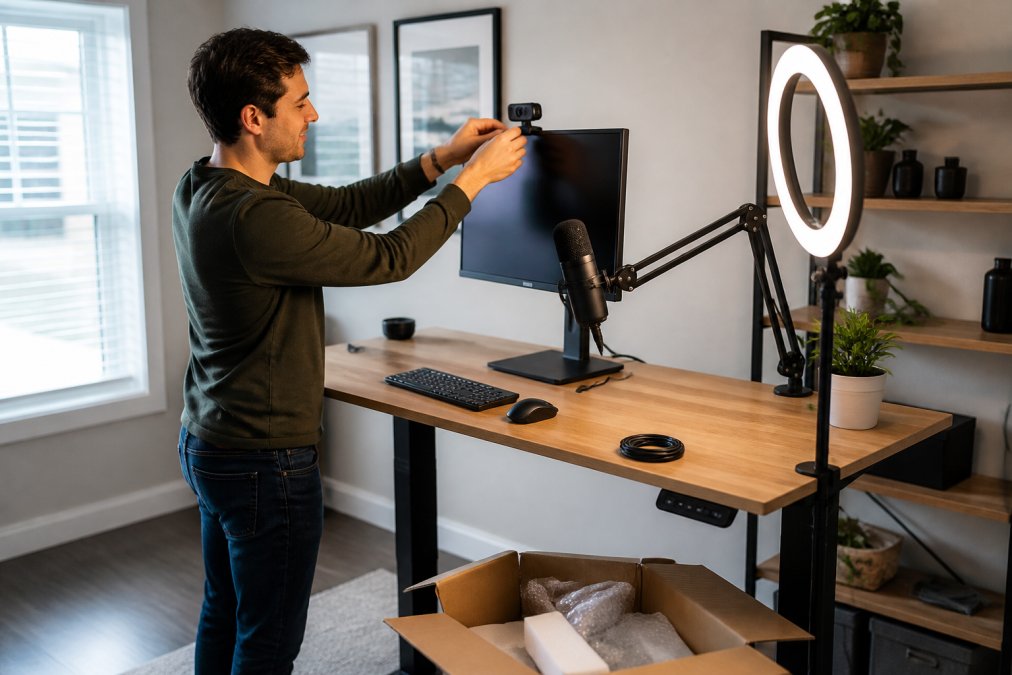
The UPLIFT V2 Standing Desk offers flexibility to alternate between sitting and standing throughout the day. Standing reduces health risks from prolonged sitting and can help you feel more energized during calls. Programmable presets let you save preferred heights, so switching takes one button press.
Video Conferencing Software and Hardware Integration
Your hardware works as well as it integrates with your video conferencing software. The three dominant platforms are Zoom Workplace, Google Meet, and Microsoft Teams.
Zoom Workplace remains the most widely used platform. It handles HD video and audio reliably, offers screen sharing and virtual backgrounds, and includes recording on paid plans. Pricing for Zoom Workplace Pro starts at $14.16 per user per month when billed annually. Nearly every external camera, microphone, and headset works seamlessly without configuration.
Google Meet integrates deeply with Google Workspace, making it the natural choice if your organization uses Gmail and Google Calendar. It offers 60-minute group calls on the free tier and includes real-time captions on paid plans. Pricing for Google Workspace Business Starter, which includes Google Meet, starts at $7 per user per month when billed annually.
Microsoft Teams combines video conferencing with chat and file sharing. It integrates seamlessly with Microsoft 365 applications and offers strong security for enterprise environments. Pricing for Microsoft Teams Essentials starts at $4 per user per month when billed annually.
All three platforms recognize external cameras, microphones, and headsets automatically. The choice usually comes down to what your organization already uses.
Acoustic Treatment for Home Offices
Untreated rooms create audio problems that expensive microphones can't completely solve. Hard surfaces reflect sound, creating echo and reverb. Soft materials absorb sound, reducing reflections.
Thick curtains or heavy fabric panels behind your microphone absorb sound reflections. A bookshelf filled with books acts as acoustic treatment. Basic 2-inch acoustic foam panels cost under $50 for a set of six and noticeably improve audio clarity when positioned behind and to the sides of your microphone.
Test your room by clapping near your microphone and listening to the recording. If you hear noticeable echo, add soft furnishings or foam panels. The difference is usually obvious.
Building a professional remote video call setup doesn't require thousands of dollars. Start with essentials: a quality external webcam, a dedicated microphone, and proper lighting. Perfect Take Gear offers curated starter kits that bundle these components at budget-friendly prices. Add ergonomic improvements like a monitor stand and supportive chair, then optimize your room's acoustics with simple soft furnishings. This foundation elevates your presence in every call and gives you confidence that you're representing yourself professionally.
Frequently Asked Questions
What equipment do I need to start with essential gear for remote video calls?
Start with the fundamentals: a high-definition webcam (1080p minimum), a USB microphone with noise-canceling capability, and at least one light source. Add a quality headset for audio monitoring, and consider a standing desk to maintain proper ergonomics during long calls. These core components address video quality, audio clarity, and professional appearance, the three pillars of effective remote communication.
How do I improve audio quality for video calls without spending a fortune?
A dedicated USB microphone like the Rode NT-USB Mini delivers studio-quality audio at a fraction of professional studio costs. Position it 6-8 inches from your mouth, use a pop filter to reduce plosives, and add soft furnishings around your workspace to absorb ambient noise. Avoid speaking directly toward hard walls, and test your audio settings in your video conferencing software before important calls.
Is a 4K webcam necessary for remote video calls?
No. Full HD (1080p) at 30fps is the standard for professional video calls. Most video conferencing platforms compress video anyway, so 4K doesn't provide meaningful improvement and consumes more bandwidth. Focus instead on a webcam with good low-light performance, automatic exposure adjustment, and a wide field of view (70-90 degrees) to capture your entire face and upper body naturally.
What's the best lighting setup for remote video calls?
Position a key light 3-4 feet in front of you and slightly above eye level to eliminate shadows and provide flattering illumination. Use color temperature between 4000K-5600K (daylight) for a professional appearance. Ring lights work well for close-up calls, while LED panels offer more flexibility for larger workspaces. Avoid backlighting and harsh overhead lights that create shadows under your eyes.
Can I mix equipment from different brands in my video call setup?
Yes. Most peripherals use standard USB or 3.5mm connections and work across different brands. Your video conferencing software (Zoom, Google Meet, Microsoft Teams) lets you select which webcam, microphone, and speaker to use independently. Verify compatibility before purchasing, but generally a Rode microphone works perfectly with a Logitech webcam and Elgato lighting, no proprietary lock-in required.
This article was written using GrandRanker