

Advanced Video Streaming Techniques for Clean, Low-Latency Live Video
Quick Summary
Video streaming delivers video over the internet in small pieces so playback starts before the whole file arrives. Quality and delay depend on each step of the path: ingest, transcode, and delivery. Matching your bitrate to your upload speed matters most.
- Ingest, transcode and delivery are the three stages every stream passes through.
- Set your upload bitrate to about half your measured upload speed.
- A common starting bitrate for 1080p live streams is 4,500 to 6,000 kbps.
- Use a 2-second keyframe interval so seeking and quality switching work properly.
- Standard live streams often run 10 to 30 seconds behind real time.
Table of Contents
- How Video Streaming Delivers Your Content
- Choosing Video Streaming Protocols: HLS, DASH, RTMP and SRT
- Video Encoding Settings for Streaming
- How Adaptive Bitrate Streaming Keeps Playback Smooth
- Reducing Delay in Low Latency Live Streaming
- Troubleshooting Buffering and Dropped Frames
- Setting Up Your Next Stream With Perfect Take Gear
- Frequently Asked Questions
How Video Streaming Delivers Your Content
Video streaming is the process of sending video to viewers over the internet in small pieces, so playback starts before the whole file arrives. Creators often run into streaming problems because they focus on the camera and ignore the path the video takes after it leaves the studio. This guide walks through that path and the choices that affect quality and delay.
Every stream follows the same basic path. Your camera and mic capture the scene, your software encodes it, the encoded stream travels to a server, and the server delivers it to viewers. Each step adds a little time and can add a little quality loss. overview of how live video streaming works
The Ingest, Transcode and Delivery Workflow
Streaming works in three stages:
- Ingest: Your encoder sends the live feed to a streaming server.
- Transcode: The server makes several versions at different sizes and bitrates.
- Delivery: Viewers' devices pull the version that fits their connection.
The transcode step is what lets one stream reach phones on weak Wi-Fi and TVs on fast fiber at the same time. Knowing this helps you pick the right server and settings.
Watch out: Sending a bitrate that is too high for your upload speed causes dropped frames before the stream even reaches the server.
Choosing Video Streaming Protocols: HLS, DASH, RTMP and SRT
A protocol is the set of rules that moves your video. Most creators send with RTMP or SRT and viewers receive with HLS or DASH. comparison of HLS, MPEG-DASH and RTMP
- RTMP: Common for sending video to platforms. Older, but widely supported.
- SRT: Handles unstable connections better, so it suits remote or mobile setups.
- HLS: The usual choice for viewer playback on Apple devices and most browsers.
- MPEG-DASH: An open standard for playback, often used alongside HLS.
Pick the sending protocol your platform accepts first. Then match your viewer delivery to what your audience uses.
Video Encoding Settings for Streaming
Encoding settings decide how much data your stream uses and how sharp it looks. For most 1080p live streams, a bitrate between 4,500 and 6,000 kbps is a common starting point. recommended streaming bitrates by resolution

!A content creator at a desk adjusting streaming software settings on a laptop beside a webcam and microphone in a well-lit home studio
Use these settings as a baseline:
| Setting | Common Starting Value | Why It Matters |
|---|---|---|
| Resolution | 1920x1080 | Sets the sharpness ceiling |
| Frame rate | 30 or 60 fps | 60 fps suits fast motion and gaming |
| Bitrate | 4,500-6,000 kbps | Must fit your upload speed |
| Keyframe interval | 2 seconds | Needed for seeking and ABR switching |
Set your upload bitrate to about half of your measured upload speed. That leaves room for spikes.
How Adaptive Bitrate Streaming Keeps Playback Smooth
Adaptive bitrate streaming, or ABR, creates several quality levels from one source. The player watches the viewer's connection and switches levels as conditions change. explanation of adaptive bitrate streaming
This is why a viewer's picture may dip in quality for a moment instead of freezing. The player trades sharpness for smoothness. Keep your keyframes aligned across the quality levels, or switching will look choppy.
Reducing Delay in Low Latency Live Streaming
Standard live streams often run 10 to 30 seconds behind real time. Low latency live streaming cuts that gap, which matters for chat-driven shows and live Q&A. guide to low-latency live streaming trade-offs
To reduce delay:
- Use a shorter segment length.
- Choose a protocol and platform that support low-latency modes.
- Keep your encoder's buffer small.
Lower delay usually costs some stability, so test it before a big show.
Troubleshooting Buffering and Dropped Frames
Buffering, dropped frames, and startup delay look alike to a viewer, but they start in different places. Before changing settings, locate the fault by checking each stage of the path in order: the encoder, the upload link, the ingest server, and the player.
Start on your own machine. Open your streaming software's stats panel and note two counters: dropped frames caused by the network and frames skipped by the encoder. If the encoder is skipping frames, your CPU or GPU cannot keep up with the chosen resolution, frame rate, or preset, and lowering the bitrate will not help. Reduce the encoder preset speed or the output resolution instead.
If the encoder is healthy but network drops climb, test the upload link while the stream is live. Measure sustained upload throughput over at least two minutes, not a single burst, because short speed tests hide the sustained dips that cause buffering. A simple rule of thumb many practitioners use is to keep the video bitrate near half of sustained upload, which leaves room for the audio track and for brief congestion.
If the ingest side is clean but viewers still stall, the fault is usually downstream. Check whether the stall happens on one device, one network, or everywhere. A single-device stall points to the player or the viewer's connection, while a stall across many viewers points to your ingest or delivery configuration.
To confirm a fix, change one variable at a time and record the result. A useful test log lists the bitrate, the upload speed measured during the session, the dropped-frame count per ten minutes, and the average startup delay on two devices. Compare the log before and after each change so you can see which adjustment actually helped.
Watch out: Restarting the stream without changing a setting usually reproduces the same dropped frames within minutes, so your log will show no improvement and you will misread the fault as intermittent.
Setting Up Your Next Stream With Perfect Take Gear
A stable stream depends on three inputs working together: a clean video source, clear audio, and an upload path that matches your encoder settings. Perfect Take Gear's Content Creator Gear & Equipment and Cameras, Lighting & Audio Equipment cover the first two, and the setup order matters more than the brand names.
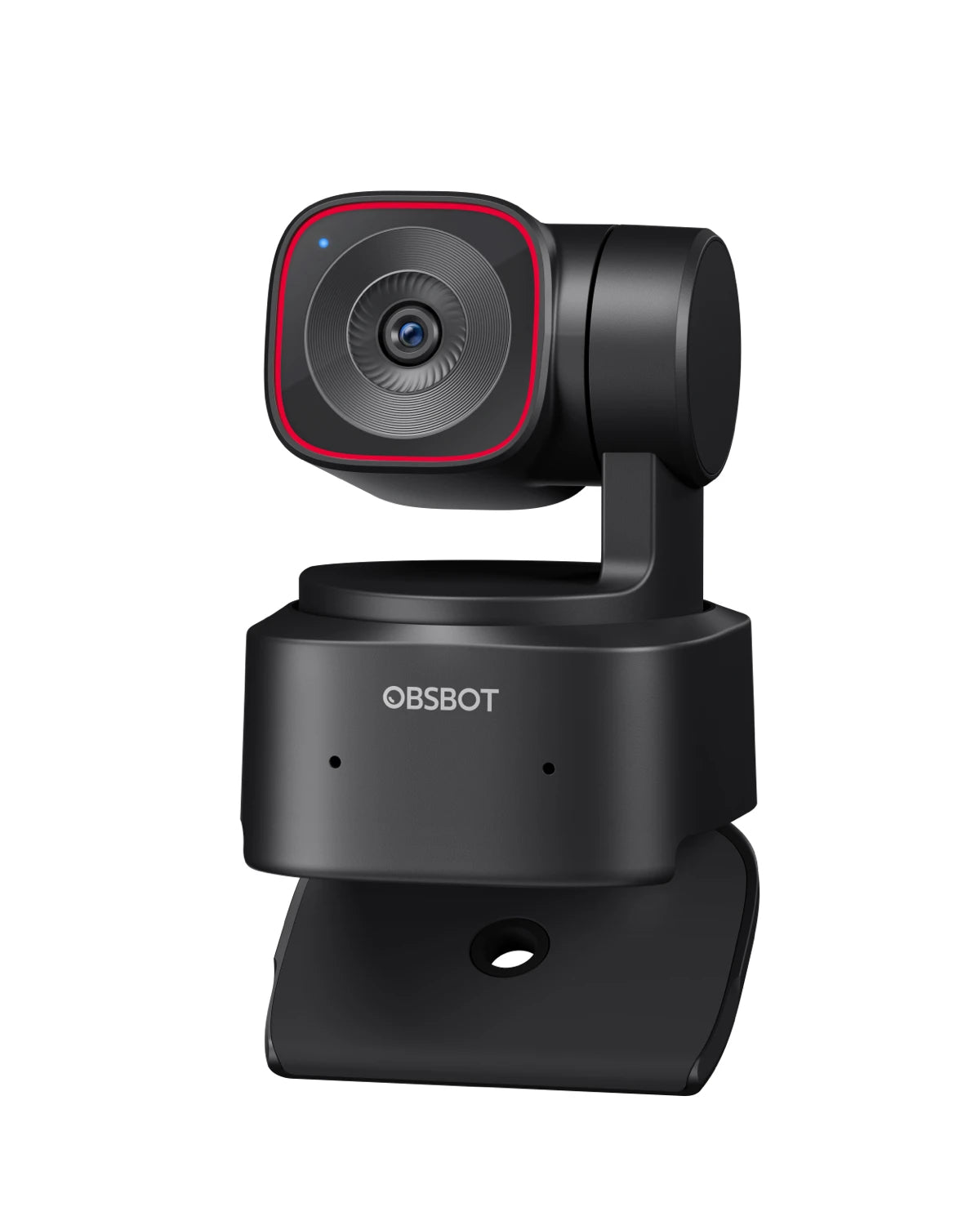
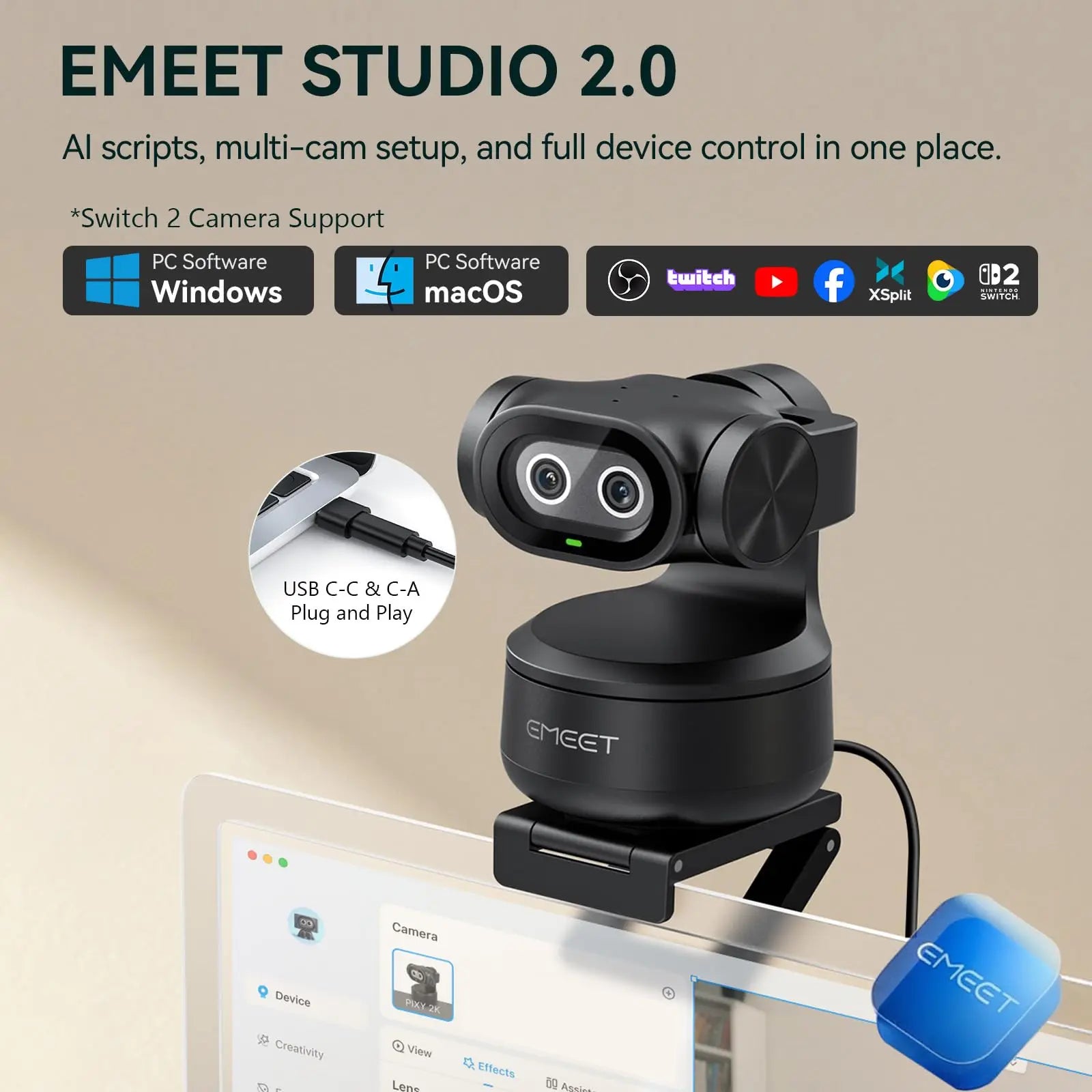
For a solo streamer, a webcam with auto-framing removes the need for a camera operator. The OBSBOT Tiny 2 Lite 4K AI Tracking Webcam (OBSBOT Tiny 2 Lite, $279.99) captures 4K at 30 fps and 1080p at 60 fps. If you stream at 1080p60, the 60 fps mode gives smoother motion, but it also raises the bitrate you need, so confirm your upload headroom before selecting it. The EMEET PIXY 2K webcam (EMEET PIXY 2K, $142.99) is a lower-cost option with a three-microphone array, which suits quick setups where the built-in audio is good enough for talk-based shows.
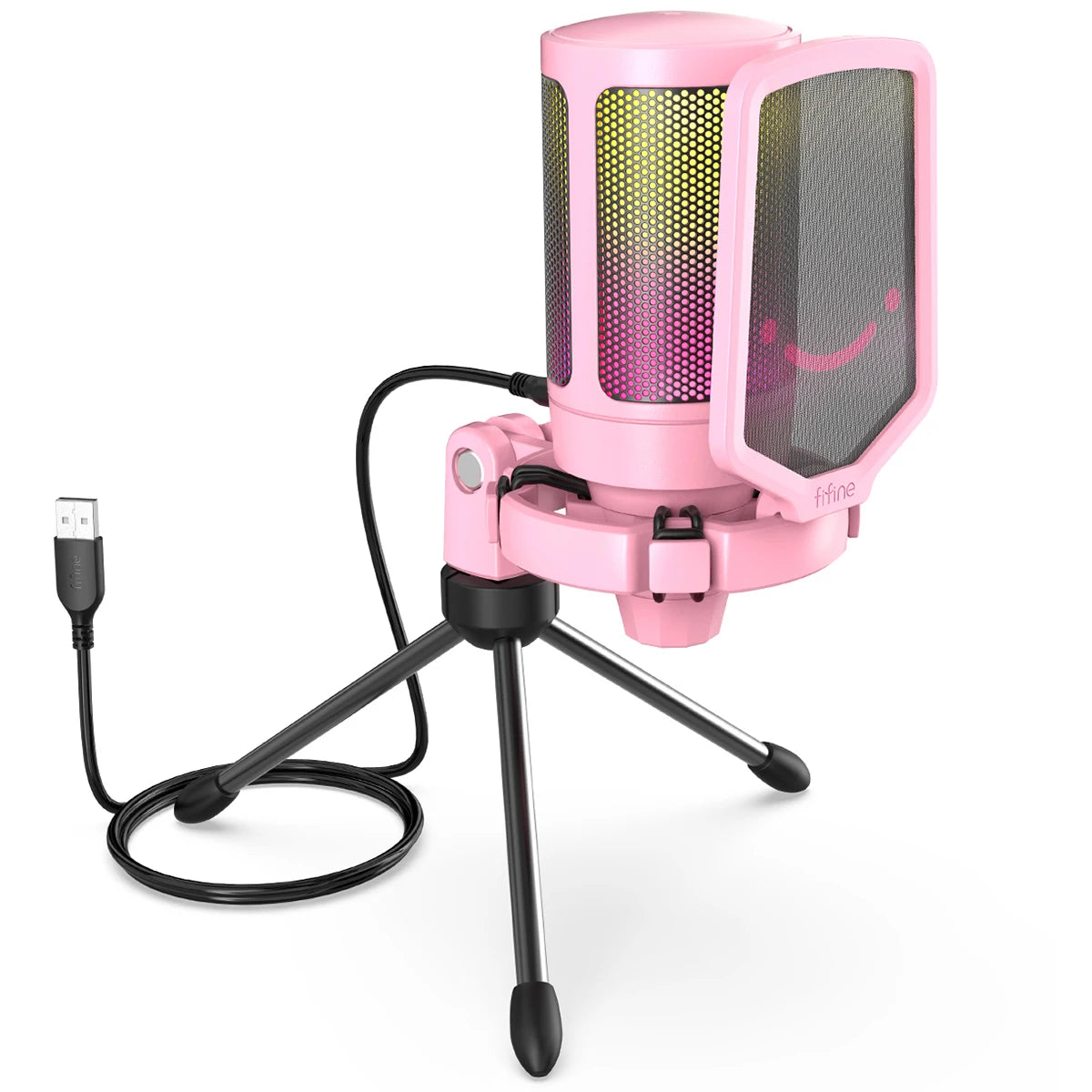
Audio affects viewer retention more than most creators expect. A USB microphone such as the Fifine Ampligame streaming microphone gives a cleaner signal than a laptop mic. Set your input gain so speech peaks sit well below clipping, and keep the microphone at a fixed distance so the level stays consistent across the broadcast.
For footage you plan to cut into later streams or clips, the DJI Osmo Nano 128GB action camera records 4K at 60 fps. Keep recordings at a bitrate you can edit comfortably, and transcode only once for delivery to avoid compounding quality loss.
A practical setup order: place the camera at eye level, set the microphone and verify levels with a short test recording, then run your encoder at the bitrate you confirmed on your upload test. Making these three checks before going live prevents most first-stream problems.
Frequently Asked Questions
What are advanced video streaming techniques?
Advanced video streaming techniques go beyond a single upload and a fixed bitrate. They include adaptive bitrate streaming, which produces several renditions of the same video so players can switch quality as bandwidth changes; choosing a protocol suited to the job, such as RTMP or SRT for contribution and HLS or MPEG-DASH for delivery; tuned encoding settings like keyframe interval and bitrate ladders; and latency reduction through chunked or low-latency variants of HLS and DASH. Together these keep video sharp and playback steady for viewers on varied connections.
How does adaptive bitrate streaming improve video quality?
Adaptive bitrate streaming encodes the same video at several resolutions and bitrates, then splits each into short segments. The player measures available bandwidth and requests the highest-quality segment it can download without stalling. When a connection weakens, it drops to a lower rendition instead of freezing, and when it recovers, it climbs back up. For creators, this means a single stream can look good on fast home fiber and still play on a weak mobile connection.
Which video streaming protocol should I use for live streaming?
Use RTMP or SRT to send your signal from encoder to streaming platform, since most platforms accept RTMP and SRT offers better recovery over unstable networks. For delivery to viewers, HLS is the most widely supported and works on nearly all devices, while MPEG-DASH is common on Android and web players. If you need the lowest delay, look for low-latency HLS or DASH options offered by your platform. Check which protocols your platform accepts before choosing your encoder setup.
What bitrate and resolution should I use for streaming?
A common starting point for 1080p at 60 frames per second is a video bitrate between 4,500 and 6,000 kbps, and about 3,000 kbps for 720p at 30 frames per second. Set a constant bitrate with a keyframe interval of 2 seconds, and keep your upload speed at least 1.5 times your chosen bitrate to leave headroom. Run a short test stream and watch dropped frames before going live, then adjust down if you see congestion.
